
Pixel Art Dithering
Dithering fakes extra colors by mixing pixels in patterns. Used well it adds texture; used badly it adds noise. Here is how to decide.
What dithering actually does
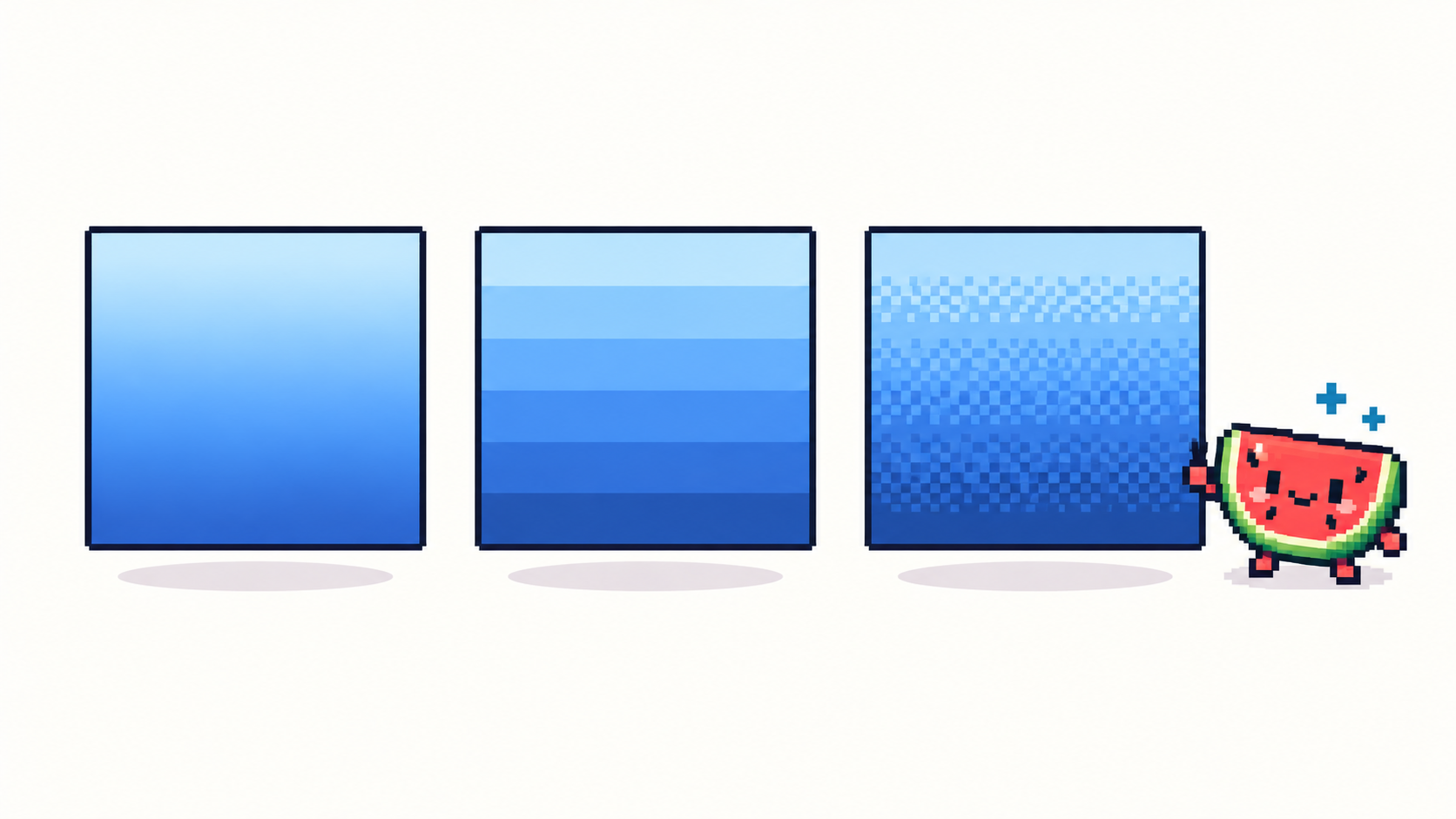
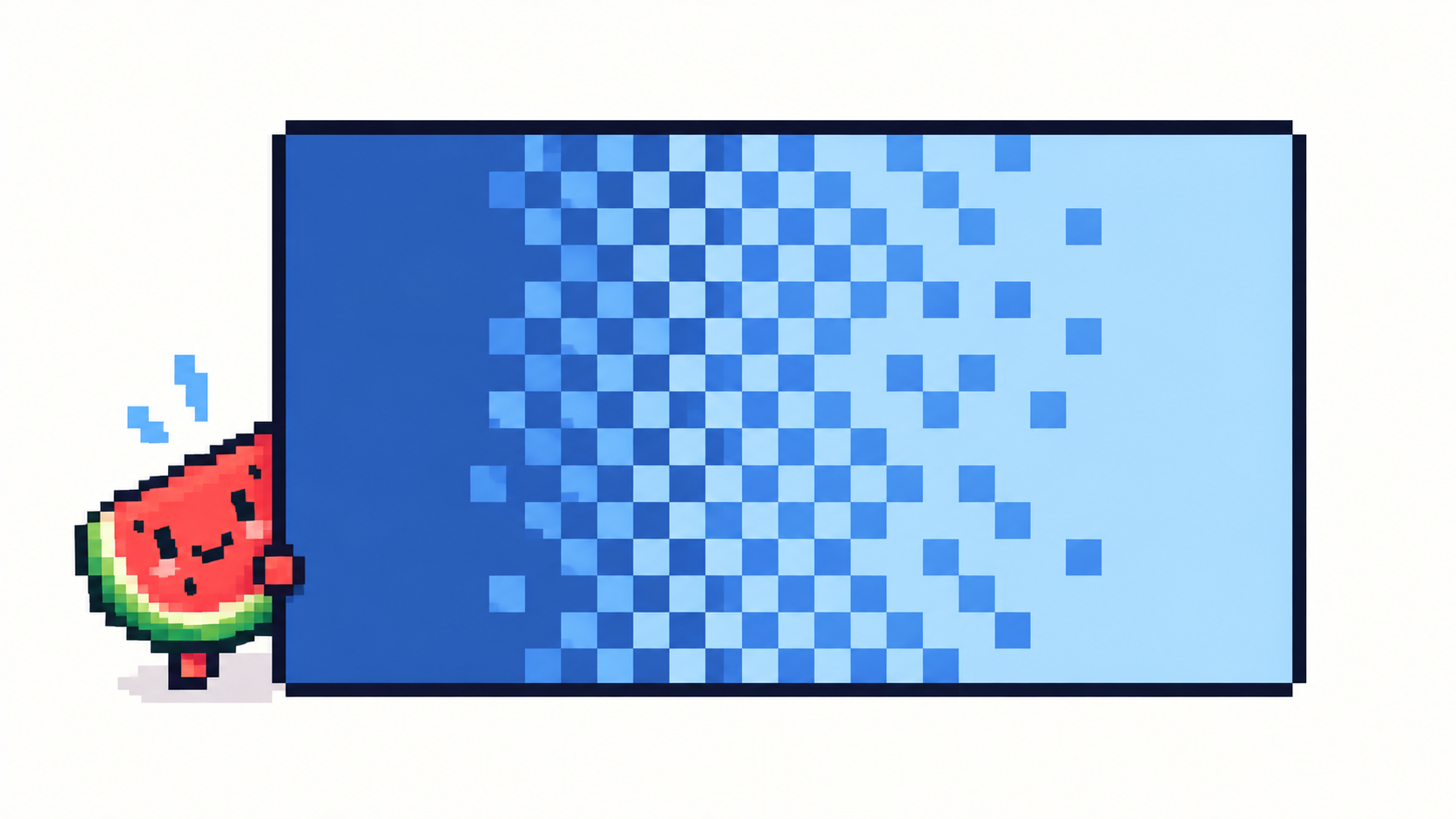
With few colors, gradients band into stripes. Floyd–Steinberg dithering — the method in the converter — pushes each pixel’s rounding error to its neighbors, trading bands for a fine dot texture that reads as intermediate shades at normal size.
When it helps
- Smooth gradients: skies, vignettes, skin, metal.
- Low color counts (4–8), where bands would be harshest.
- Print and large display, where texture disappears into tone.
When it hurts
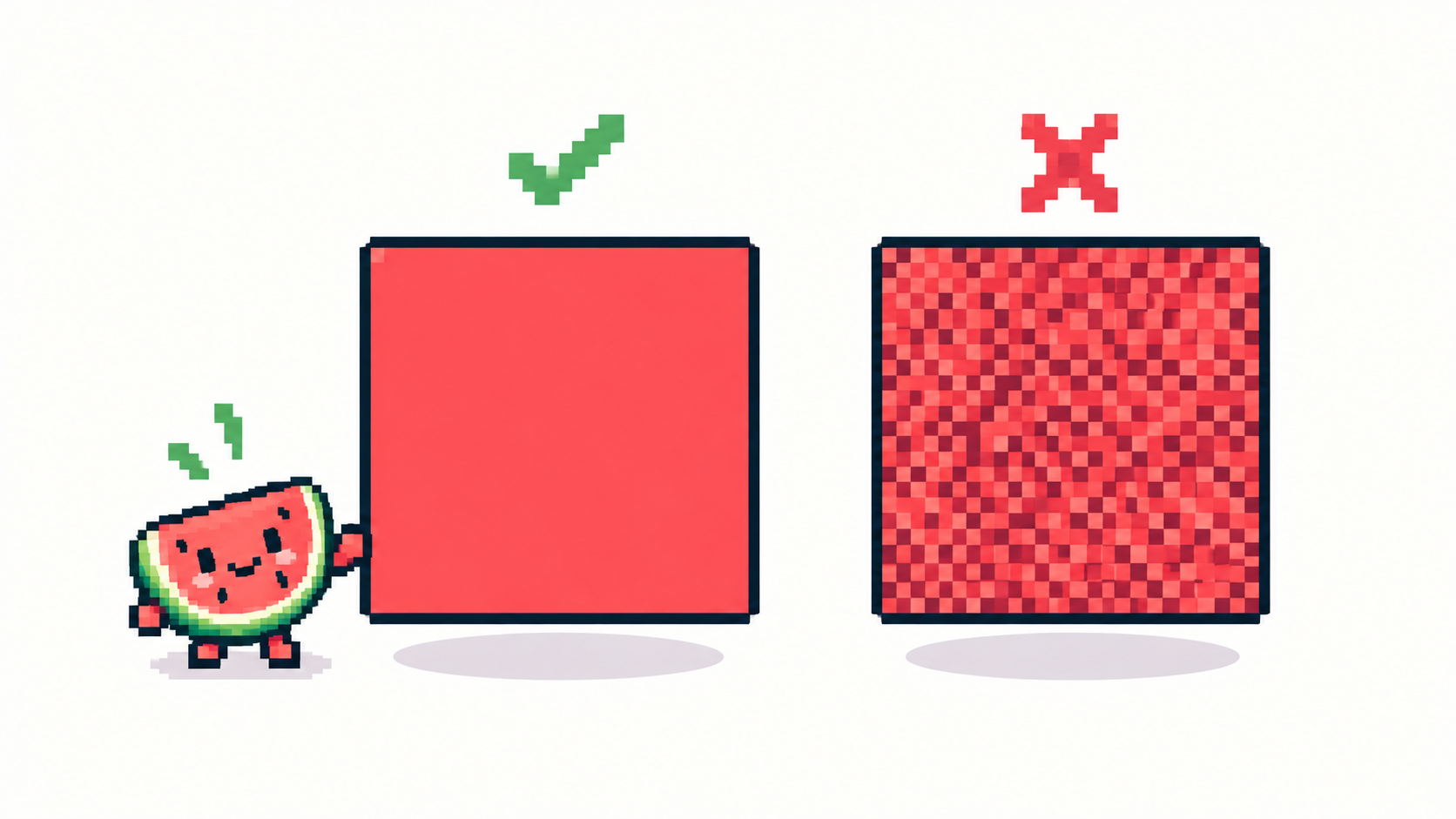
- Flat cartoon art: dots pollute clean fills — turn it off.
- Tiny sprites (16–32 px): texture competes with the shapes themselves.
- Art destined for hand-editing: noise multiplies cleanup work. Convert clean, then add texture deliberately.
Why Sharp pixels disables it
Sharp pixels means hard edges and flat fills — the philosophical opposite of error diffusion. The converter enforces the choice: Sharp on, dithering off. Compare three renders (dithered / plain / sharp) in the side-by-side preview and pick per image, not per habit.
Frequently asked questions
Dithering on or off?
On for gradients, off for flat cartoon fills and tiny sprites. When in doubt, render both and compare.
Why can’t I combine Sharp and dithering?
They are opposites: hard flat fills versus diffused texture. The tool enforces one look per render.
Will dithering increase my file size?
Often yes: dot texture compresses worse than flat fills, so dithered GIFs weigh more. Clean gradients also export smaller.
Does dithering work on transparent sprites?
Yes — dots only land on opaque pixels while transparency stays clean, so shaded stickers keep crisp cut-out edges.
Have a picture in mind? Turn it into pixel art