
How to Turn a Picture Into Pixel Art
Automatic conversion gets you 90% of the way; manual cleanup gets you the last 10%. Here is the workflow that produces the cleanest results.
Start with a readable photo
Conversion preserves structure, not magic. Simple subjects, clean backgrounds and strong light convert beautifully; busy, dark or blurry photos convert into speckles. Crop mentally: the converter maps the whole image, so distracting corners become distracting pixels.
Resolution first, colors second
Set resolution for the level of detail (64 px is a good default; 32 px for icons, 128–256 px for scenes), then drop the color count until shapes flatten into readable bands — usually 8–16. This two-knob order matters: detail first, simplification second. Open the converter and move both sliders while watching the side-by-side preview.
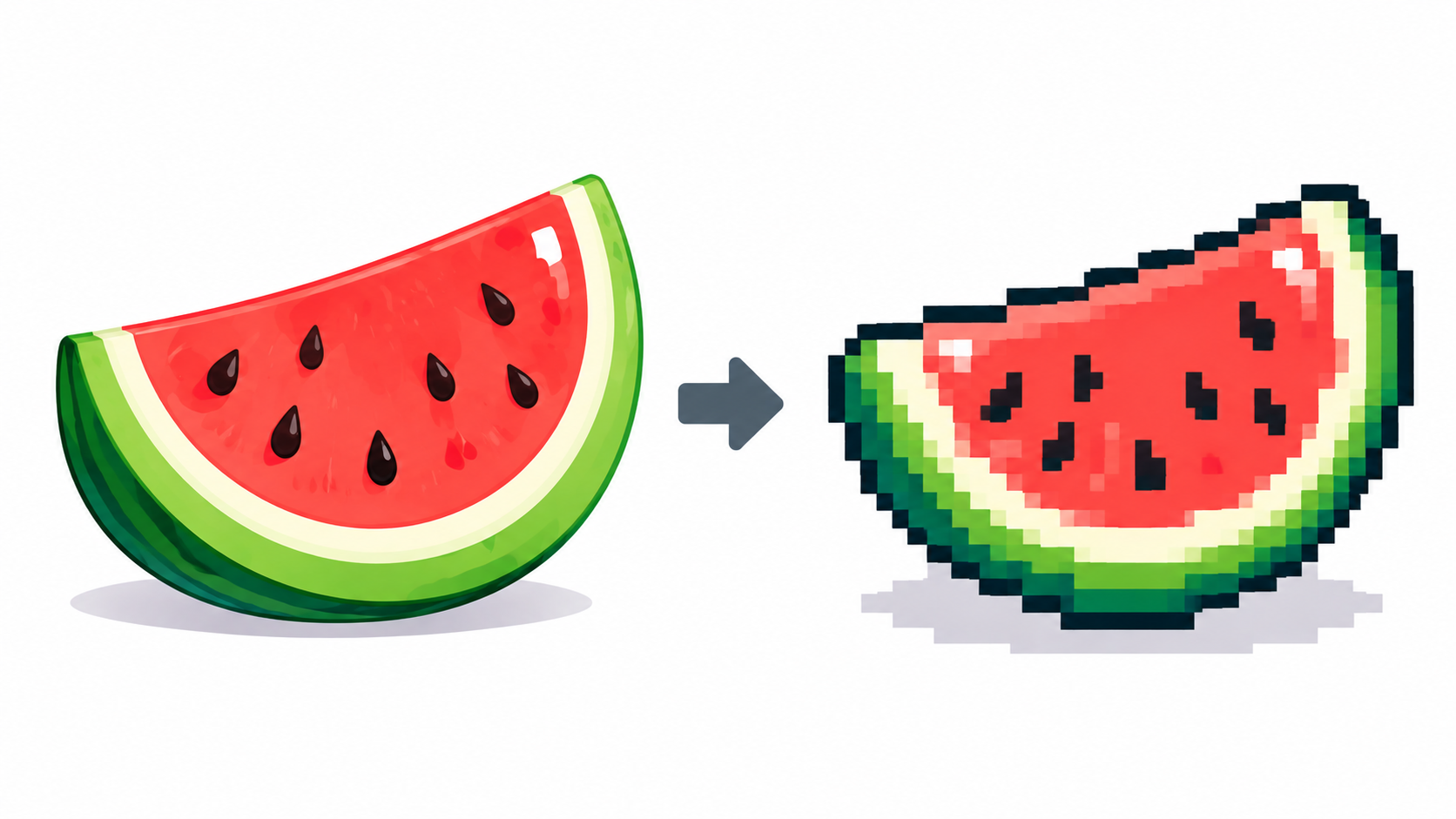
Decide on texture: dithering or sharp
Smooth gradients (skies, skin) usually want dithering on; flat cartoon art wants it off, often with Sharp pixels instead for hard edges. They conflict by design — Sharp disables dithering — so compare all three states. The dithering guide shows the exact tradeoff.
Fix the palette, fix the picture
Click any swatch to recolor it, sample the original with Pick from picture, and reset with Auto when experiments go wrong. Kill stray colors one swatch at a time — each removed color simplifies the whole image. Grayscale is one click when color is not carrying meaning.
Finish by hand — the last 10%
Press Edit Pixel Art: clean silhouettes pixel by pixel, restore eyes and highlights the quantizer merged, and erase background crumbs. Ten manual minutes routinely beat any fully automatic result — and the piece can go straight to the animator afterward.
Frequently asked questions
Why does my conversion look speckled?
Too much detail for the color count, or dithering on flat art. Lower colors, disable dithering, or try Sharp pixels.
Can I convert only part of a photo?
Crop the photo first in any image app, then convert — the converter maps the whole upload.
Is manual cleanup really necessary?
For showcase results, yes — ten minutes fixing silhouettes and eyes beats any slider tweak.
What kind of photo converts best?
Simple subjects, clean backgrounds and strong light. Busy, dark or blurry photos convert into speckles no slider can rescue.
Dithering or sharp pixels — how do I choose?
Dithering for smooth gradients like skies and skin; sharp pixels for flat cartoon fills. They conflict by design, so compare both and pick per image.
Have a picture in mind? Turn it into pixel art