
How to Convert a Portrait to Pixel Art
Portraits are the hardest conversion subject — humans detect a wrong eye instantly. The workflow below protects likeness at every step.
Start bigger than you think
Faces need pixels to stay faces: begin around 96–128 px resolution with 16–24 colors, then simplify downward only while likeness holds. Frontal, evenly lit photos convert far better than angled dramatic ones — pick boring light for lively results. Crop to head and shoulders; background pixels steal palette slots from skin.
Protect eyes and mouth
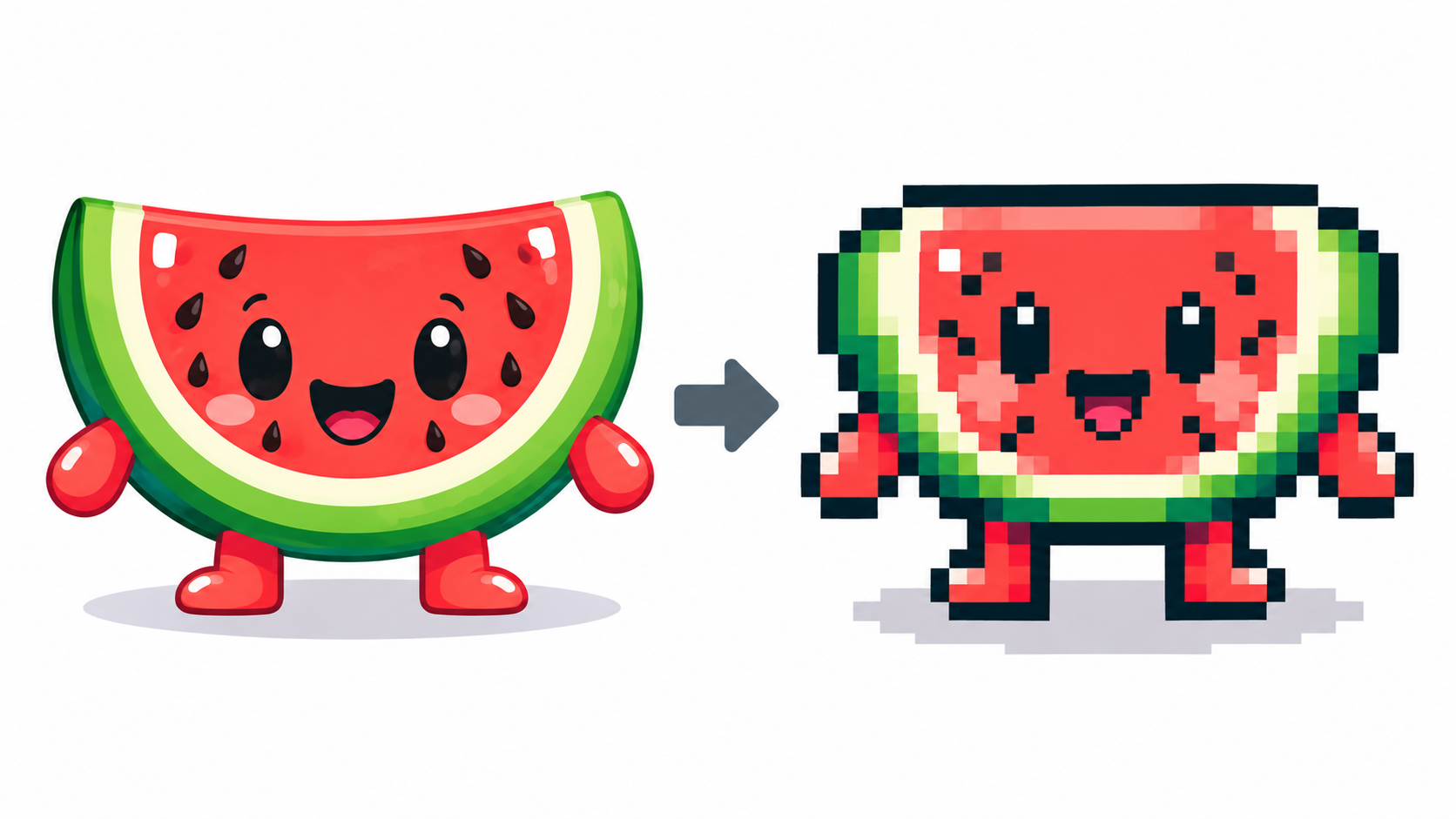
Quantization merges small features first, and it always eats the eyes. After converting, send the result to the editor and repaint eyes and mouth by hand at 1–2 px darker than surrounding skin — this single step rescues most portraits. Pixel faces covers how little detail eyes actually need.
Skin tones and backgrounds
Keep skin high-value so features pop, and let the palette spend colors on skin gradients rather than busy backdrops — or enable transparency to drop near-white backgrounds entirely. A flat backdrop also compresses the palette usefully: fewer background colors means more skin colors. Grayscale first is a legitimate checkpoint: if the likeness reads in gray, color will sing.
Finish and export
Clean stray speckles in hair and background, unify the palette toward 8–12 final colors, and export PNG for sharing (native 1× size, every pixel exact). The general pipeline — resolution, colors, dithering call, hand finish — is converting pictures; portraits just weight every choice toward the face.
Frequently asked questions
What settings for portrait conversion?
Start 96–128 px with 16–24 colors, frontal evenly-lit photo, then simplify while likeness holds.
Why do converted faces look wrong?
Eyes and mouth get merged first. Repaint them by hand at 1–2 px darker than the skin.
Should portraits use transparency?
For avatars and stickers, yes — dropping the background frees palette slots for skin.
How do I handle busy backgrounds in portraits?
Flatten or drop them: busy backdrops steal palette slots from skin. Transparency or a flat backdrop frees colors for the face.
Have a picture in mind? Turn it into pixel art