
How to Make Pixel Art
Making pixel art is mostly about working small on purpose. This guide walks you through a blank canvas in PixiMelon, from size choice to finished export.
Pick a small canvas on purpose
Pixel art is drawn small and displayed big. Start at 32 × 32: large enough for a character, small enough that every pixel matters. Drop to 16 × 16 for icons where readability beats detail, or go 64 × 64 for portraits. Open it in the pixel art maker — you can resize later and the artwork scales with the canvas.
Learn five tools and ignore the rest (for now)
- Pencil for everything. Shift constrains to straight lines — the secret behind clean edges.
- Eraser for carving shapes back; Alt + click removes a whole connected color.
- Fill for flats, after outlines are closed.
- Eyedropper (I) to reuse exact colors instead of guessing.
- Undo (Ctrl/⌘ + Z) as a drawing tool in its own right — sketch boldly, rewind freely.
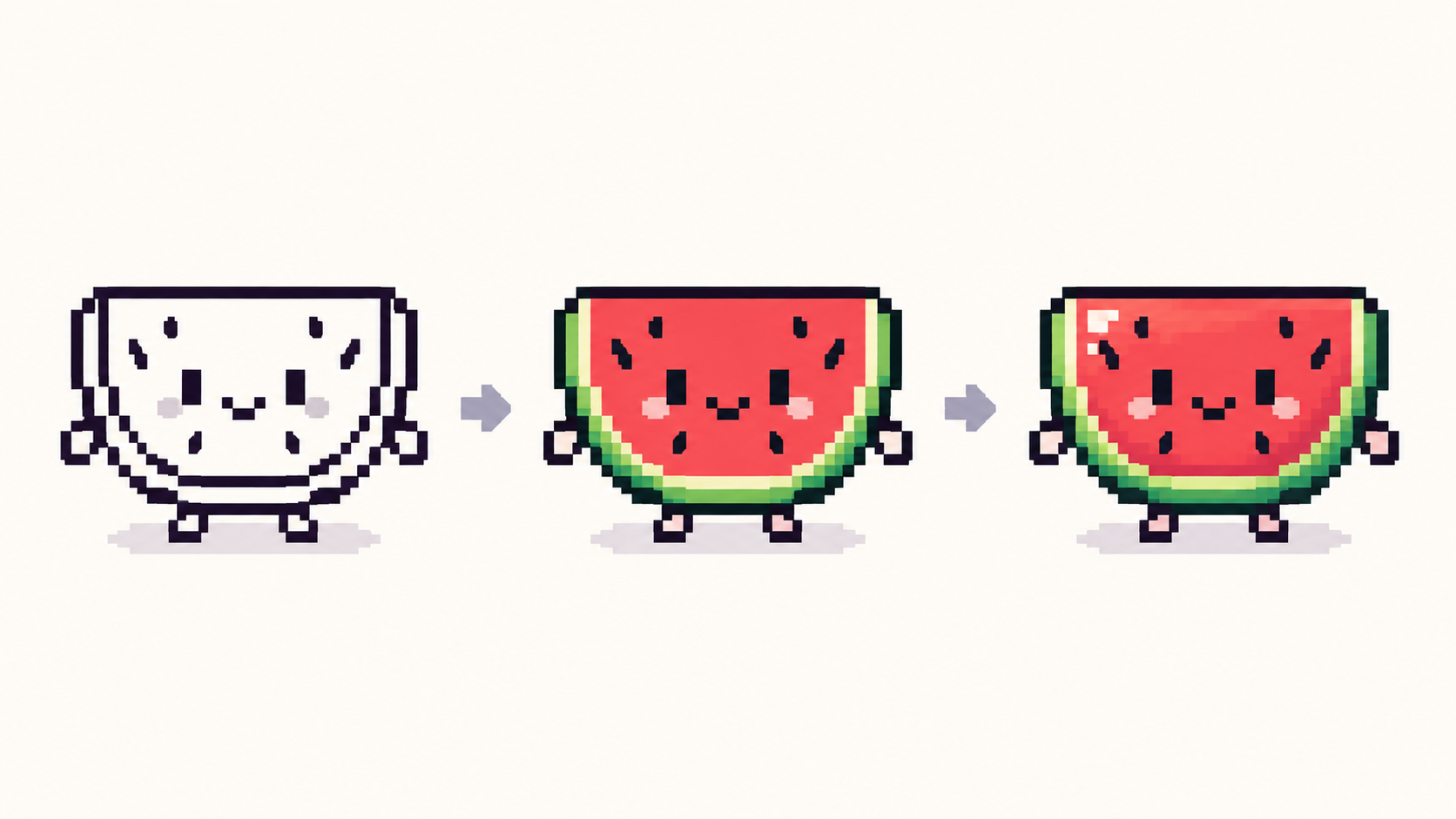
Draw with layers from the start
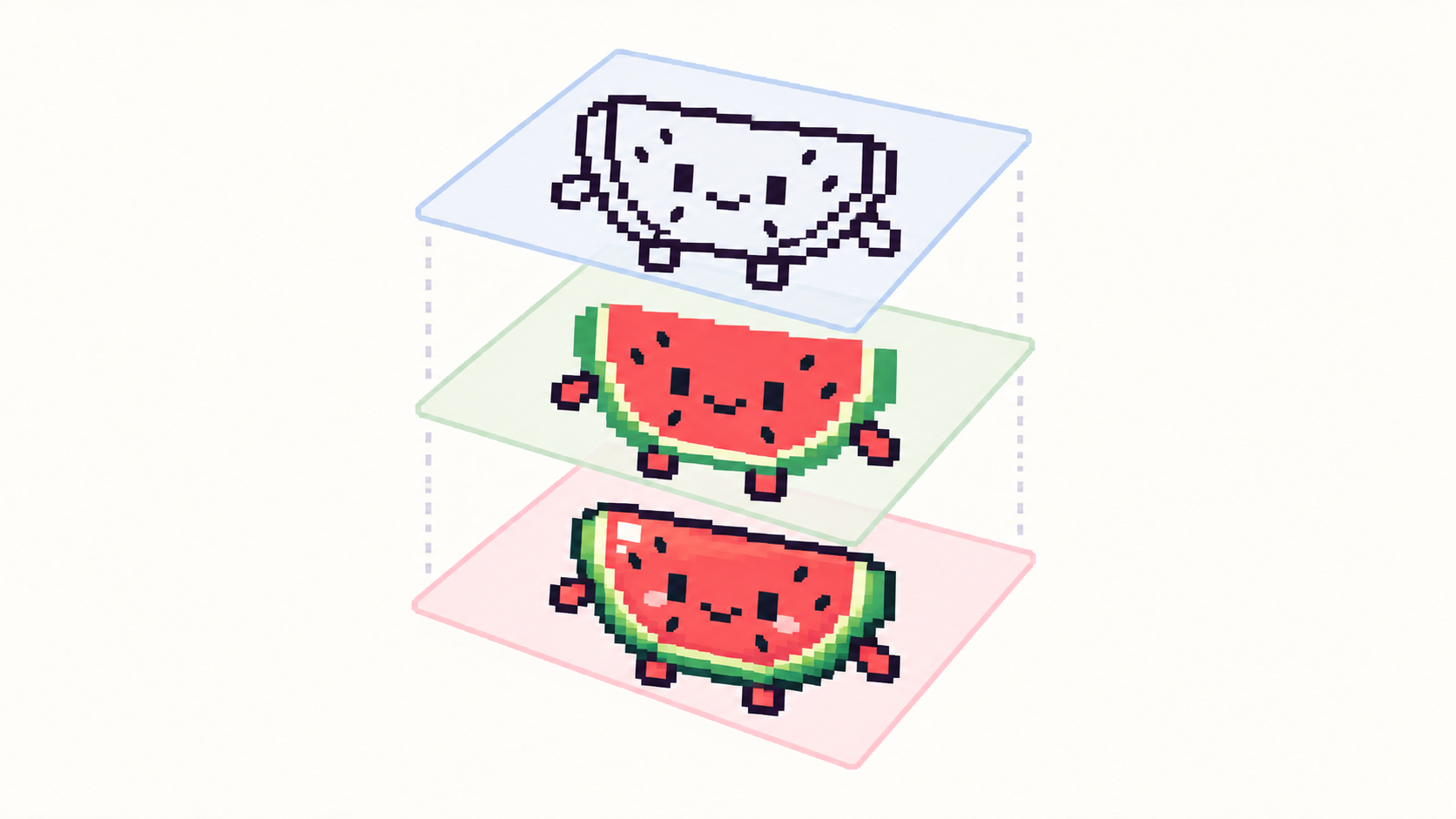
Sketch on one layer, clean lines on another, colors below, shading on top. Lock finished layers so stray clicks cannot hurt them, and reach for Multiply for shadows and Screen for glows before inventing new colors. Copy and paste whole layers with Ctrl/⌘ + C and V when you need variants.
Limit your palette early
Beginners use too many colors; the fix is a cap. Aim for 4–8 colors for your first sprites and let the editor collect used colors into the palette panel automatically. The palette guide explains counts, ramps and when gray is enough.
Export for the destination
Game sprite or web graphic? PNG keeps pixels crisp at native size; enlarge in whole multiples with smoothing off if you need it bigger. Icon or logo that must scale forever? SVG — true vector rectangles. Print or portfolio sheet? PDF. Name the project first; the name becomes the filename.
Frequently asked questions
What size should my first canvas be?
32 × 32. Big enough for a character, small enough to finish. Scale up only when the design outgrows it.
How many colors should beginners use?
Four to eight. Constraints teach shape and contrast faster than any tutorial.
PNG, SVG or PDF?
PNG for games and web, SVG for logos that must scale, PDF for print and portfolios.
How do I fix mistakes without starting over?
Undo with Ctrl/⌘ + Z goes far, and layers go further: sketch, lines, colors and shading on separate layers, lock finished ones, and no stray click can hurt them.
How do I keep shapes readable at tiny sizes?
Think silhouette first, keep contrast high, and judge at 100%: if it reads small and dark-to-light, it reads anywhere.
Ready to draw? Open the Pixel Art Maker